


FAQ: Ink tank, laser, LED? Frequently asked questions about printers
Despite tablets and PDF documents, ink or laser printers are here to stay. There are many different new technologies and price models on the market.
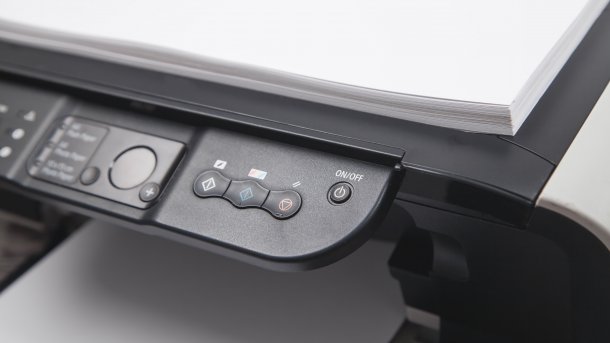
Despite digital alternatives, inkjet and laser printers are here to stay. We dispel old prejudices and answer the most frequently asked questions about new technology and opaque subscription and pricing models.
Black ink dries up faster
My HP printer has very little to do, but when I need it, it prints black text in streaks, but colors are clean. It is annoying that color ink is also lost during the subsequent cleaning process, even though only the black print heads are clogged. Can I prevent the black nozzles from clogging?
Home printers from Canon and HP are often equipped with two combination cartridges that form a unit with the print head: One contains the black ink and the other the three basic colors cyan, magenta and yellow. The black ink consists of the ink liquid and solid color particles (pigments), which ensure good coverage when printing text. The color inks only contain liquid dyes, but no solid particles. This makes it easier to mix the basic colors for photo printing.
HP and Canon use the bubblejet process for inkjet printing, in which the ink is heated in the chamber in front of the nozzle until a bubble is formed, which ejects the ink from the nozzle onto the paper. The chamber then has to cool down. In order to print quickly at high resolutions, the bubblejet print heads have a large number of very fine nozzles, often 800 or more for black alone. The solid particles of the black ink clog the fine nozzles much faster and more stubbornly when they dry than color inks, which consist only of liquid.
There are a few maintenance measures to prevent the ink from drying out on infrequently used printers: Always switch the printer off using the power button and only unplug it when the mechanics have come to rest and all lights are off. The printer moves the print heads to a park position when it is switched off, which prevents them from drying out quickly. Inkjet printers should therefore always be shut down in the same way as your PC's operating system. If the printer is idle for a very long time, it helps to have it print a nozzle test once a month. Only a small amount of ink is used, but each nozzle is addressed and flushed once. Unemployed printers like cool and dark storage locations.

Printer problems with Windows 10 and 11
After a Windows update or after updating to Windows 11, printing and scanning from my multifunction printer does not work or Windows no longer recognizes the connected printer. How do I get the printer to work again under Windows 11?
With Windows 8, Microsoft introduced a printing system that no longer provides individual drivers for each model, but so-called print class drivers that work with entire printer series. However, they only provide the most important settings. Since Windows 10 at the latest, old functions have disappeared from the operating system with every update, which often leads to problems even with current printers. Windows often no longer recognizes older printers in particular or reports "no drivers available". To get the printer working again after a Windows update or upgrade, various steps can help, which Microsoft also recommends:
Switch the printer off and then on again after 30 seconds. For devices connected via USB, this activates the re-recognition process and the printer is put into standby mode in any case. If the USB printer is still not recognized, you should try another USB port on the PC. Printers connected to the network take a little longer to establish a connection and then be recognized by Windows; for devices connected via WLAN, this can take one to two minutes.
Videos by heise
If the printer is still not recognized, even after clicking on "Add device" in the settings under "Bluetooth and devices/Printers and scanners", check whether the printer is registered in the local network and can be found. Is the blue Wi-Fi light permanently lit when a WLAN connection is established? For printers with a display: Does the printer report an IP address (e.g. 192.168.178.50) under Settings, Network? On the "Printers and scanners" settings page, you will also find a "Add manually" button. Is the printer recognized if you enter its IP address directly? If you ping the IP address of the printer –, enter ping 192.168.x.y in the command prompt –, does the printer respond or are there error messages?
If there is still no success, switch off the printer and remove all drivers under "Printers & scanners" that point to your device. If you have used the manufacturer's own drivers and software, uninstall everything. Then search for the latest Windows 11 installation package for your model on the printer manufacturer's service website and install it. If none is available for Windows 11, one for Windows 10 (64 bit) will also do. Only switch on the printer when the installation program searches for the printer or prompts you to connect it. After successfully completing the installation, there may suddenly be two drivers in the Windows "Printers and scanners" list, one of them with the suffix "(Copy 1)". This is the manufacturer's driver, which contains all the settings available for the printer. The first driver comes from Windows and only offers basic settings such as print orientation and print mode (black or color) and, at best, the print quality.

If it is a very old USB printer for which the manufacturer no longer offers reasonably up-to-date drivers, the only option is manual installation via "Add manually". After the information on the interface, a selection menu for the printer driver follows with two windows: on the left are the manufacturers, on the right the printer models. The model list is initially rather short and will probably not include your device. Then click on the "Windows Update" button below and wait. Windows loads the old driver database of the old printing system introduced with Windows XP, which is still available. This can take up to 20 minutes, depending on your Internet connection. After that, the list of models will be well filled and the chances of finding your printer will be greatly increased. If not, try the driver for a similar model or for one of the same series.
However, the drivers only apply to the printer. Scanners of multifunction devices are treated by operating systems as separate devices that require their own drivers. There are two options here under Windows: Either the system recognizes the scanner and automatically installs a WIA driver (Windows Image Acquisition) or the manufacturer still offers a 64-bit scan driver for your model. If only 32-bit versions are available, the only option is to switch to commercial scanning software: VueScan from Hamrick Software contains its own driver library with over 6000 models and costs 25 euros in the basic version (flatbed scanners only), the 50 euro standard version also uses document feeders. A trial version is available for download at –, so you don't have to buy a pig in a poke.
Cheap toner safe?
A set of toner cartridges for my laser printer costs almost as much as the new device. I have now found offers for cheap toners on Amazon that cost only a fraction of the original. Since nothing can dry out or stick to a laser printer, alternative toners shouldn't be a problem, right?
Far from it. The wrong toner powder can cause a lot of mess in the laser printer: As the printed image is developed and transferred to the paper by electrostatic means, the size and electrostatic properties of the toner particles must match the device. In the worst case, toner residue, which would otherwise be transported to the waste toner container after each print, remains in the printing unit and gradually contaminates it.
The melting point of the toner, which melts into the paper after being transferred to the paper by the heated fuser roller, is also important. Modern printers work with lower temperatures and melting points to save energy. If the latter is too high with cheap toner, this not only leads to poor coverage. Caked toner particles remain in the fuser, gradually sticking to it and smearing the printed image. The only option then is usually to replace the fuser unit, which is expensive. The same rules apply to the purchase of alternative toners as for inks: Good manufacturers pay careful attention to suitable properties of their products and also guarantee them. Some cheap bargains from China, on the other hand, have disappeared from the market without a trace after just a few months.
Ink subscriptions and data protection
I would like to take out an ink subscription for my HP printer as I only print a little and an ink tank model is not worthwhile for me. But now I've read that an Instant Ink subscription requires an Internet connection. Does that mean I can't print without it and all my print jobs end up on a cloud server?
No, if you take out an Instant Ink subscription with HP, you will receive special Instant Ink cartridges that report their ink level to the HP server when your printer is connected to the Internet. For billing purposes, the printer also transmits the number of pages printed, but not the content. The printer equipped with Instant Ink cartridges also works when it has no Internet access, but must contact the server at least once a month. If the printer cannot be reached, you will receive an e-mail from HP shortly before the invoice is issued asking you to connect the printer to the Internet. The other printer manufacturers that offer ink subscriptions work similarly.
Unfortunately, HP likes to combine Instant Ink with the HP+ cloud service and the HP Smart app. The app only works with an HP+ account and transfers at least everything you scan to servers in the USA. However, the HP service website also offers an offline package with the HP scan software, which you can also use to scan offline. However, you can only obtain searchable PDFs via the HP+ cloud service or you can purchase your own OCR (Optical Character Recognition) software.
Expensive ink tank printers
Why do printers with refillable ink tanks cost three times as much as normal printers with cartridges? The additional costs for the built-in plastic tanks and the hose system cannot be that high.
Ink tank printers with long ranges of 6000 pages and more are designed for customers with high print volumes. Therefore, the paper transport and print heads must also be able to cope with larger print jobs without immediately becoming a warranty case. In addition, there are devices such as a quick-change ink container that stores the ink during initial filling and cleaning processes.
However, the main reason for the high device prices is the low price of the ink: manufacturers earn very little from the sale of cheap cartridge printers, which they compensate for with high cartridge prices. This source of income is eliminated with ink tank models. In addition, an ink tank printer comes with at least one tank of ink, which is enough for around 6000 print pages. Cartridge printers usually only come with starter cartridges with a small amount of ink. The customer therefore has to buy more soon. If, for example, we generously assume a cartridge range of 400 pages and a price of 20 euros per cartridge, this would mean that with 6000 pages per tank of ink, 15 cartridges worth 300 euros would be supplied. Taking this into account, the price for an ink tank model is even reasonable.
Laser or LED printer?
As I am sensitive to fine dust and ozone, I am considering buying an LED printer instead of a laser printer. I have read that LED printers, unlike laser models, do not produce ozone. Is that true?
No, because the terms "laser" and "LED" only refer to the technology used to expose the photo drum. In laser printers, a laser beam deflected by a rotating mirror writes the image to be printed line by line onto the image drum; in an LED printer, this task is performed by an LED line. Ozone is not produced during exposure, but when the high voltage of 5 to 15 kilovolts is generated, which is needed to charge the drum, the toner powder, the paper and, in the case of color printers, the transfer ribbon. This happens in both laser and LED printers.

If this electrostatic system works properly, only a small amount of ozone is produced and no toner powder escapes. Nanoparticles, which are produced when the printed paper is heated in the fuser unit, are a more serious problem and are usually responsible for the typical laser smell when printing. The size of these particles is only one thousandth of a toner particle. They are produced by both laser and LED printers. For this reason, such printers should only be operated permanently in well-ventilated rooms or separate printer rooms. If low emissions are important to you, look out for the "Blue Angel" eco-label and the current DE-UZ 219 award criterion when purchasing devices. Manufacturers may only advertise models with the Blue Angel that comply with these award criteria, which also include upper limits for emissions of nanoparticles and ozone.


(rop)


