


FileVault for external media: macOS encrypts in the background
With the Finder, you can create a secure FileVault version of an APFS medium with one click. But this takes hours without you seeing it.
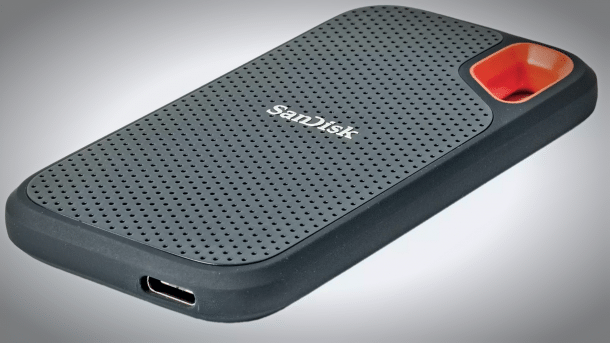
External SSD, here from Sandisk.
(Image: c't)
While Apple now encrypts the main SSD of its Macs virtually by default via FileVault – the option is now forced on users during macOS upgrades and initial setups – you have to take care of protection yourself for external media such as USB sticks or portable SSDs. The easiest way to do this is via the Finder: in the sidebar on the left, open the context menu and select “Encrypt.” Then choose a password and a password hint, and the encryption starts. The interesting thing about it: Since macOS 13, alias Ventura, at the latest, this runs completely in the background, while you can continue to use the medium completely normally.
Intransparent in the background
The fact that the encryption, which can take several hours depending on the size and connection speed, is running at all can only be recognized by the fact that “Encrypt” in the context menu of the Finder sidebar is grayed out afterward. Only when the process is finished can you read “Decrypt” there, which makes it possible to return the medium to an unencrypted state after encryption, which in turn can take several hours.
Videos by heise
The process is also dynamically paused and resumed. You can also eject the medium and plug it back in later – then the encryption or decryption will continue until the end. New files are written to the medium, either encrypted or unprotected, depending on the status. However, in both cases, you must enter the password when mounting: both when the encryption has not yet completed (and of course afterward) and when the decryption has not yet been fully completed (to access still encrypted files).
Status Check via Terminal
Anyone who wants to view the exact status must go to the macOS Terminal. There, with the command diskutil apfs list, you can see the current status of the file system. To find the medium, look for its designation under “Name.” Under “Encryption Progress” (or “Decryption Progress”), you can see from a percentage how far the process has progressed. It also shows whether the process is paused.
The latter should only happen if you leave the medium connected to the Mac but have ejected it. However, in our tests, it happened that the process got stuck once. Here it can help to connect the Mac to the power supply if it is a MacBook. In the worst case, however, the process will stop. Then only a backup of the medium and a new attempt will help. Therefore, it is best to only perform the encryption when it is ensured that the medium will remain connected to the Mac for a longer period. Alternatively, it is helpful to perform the encryption when the medium contains hardly any data – then the process is very fast. The absolute simplest variant: The external medium is already formatted as encrypted (APFS encrypted), which is possible via the Disk Utility.
Empfohlener redaktioneller Inhalt
Mit Ihrer Zustimmung wird hier ein externer Preisvergleich (heise Preisvergleich) geladen.
Ich bin damit einverstanden, dass mir externe Inhalte angezeigt werden. Damit können personenbezogene Daten an Drittplattformen (heise Preisvergleich) übermittelt werden. Mehr dazu in unserer Datenschutzerklärung.


(bsc)


